Time Log Teams – time spent on other Teams’ sites (must have 3 entries or more):
Date: Feb. 27, 2026 From: 10:00pm To: 10:15pm (15 minutes)
Date: Feb. 28, 2026 From: 10:00pm To: 10:15pm (15 minutes)
Date: Mar. 01, 2026 From: 10:00pm To: 10:15pm (15 minutes)
Time Log Students – time spent on other students’ sites (must have 3 entries or more):
Date: Feb. 23, 2026 From: 13:00pm To: 13:15pm (15 minutes)
Date: Feb. 24, 2026 From: 10:00am To: 10:20am (20 minutes)
Date: Feb. 25, 2026 From: 09:30am To: 09:45am (15 minutes)
Essay I. Summary of your activities in your contents including new contents created (one paragraph). Provide all the hyperlinks (clickable) of new contents you have created this week.
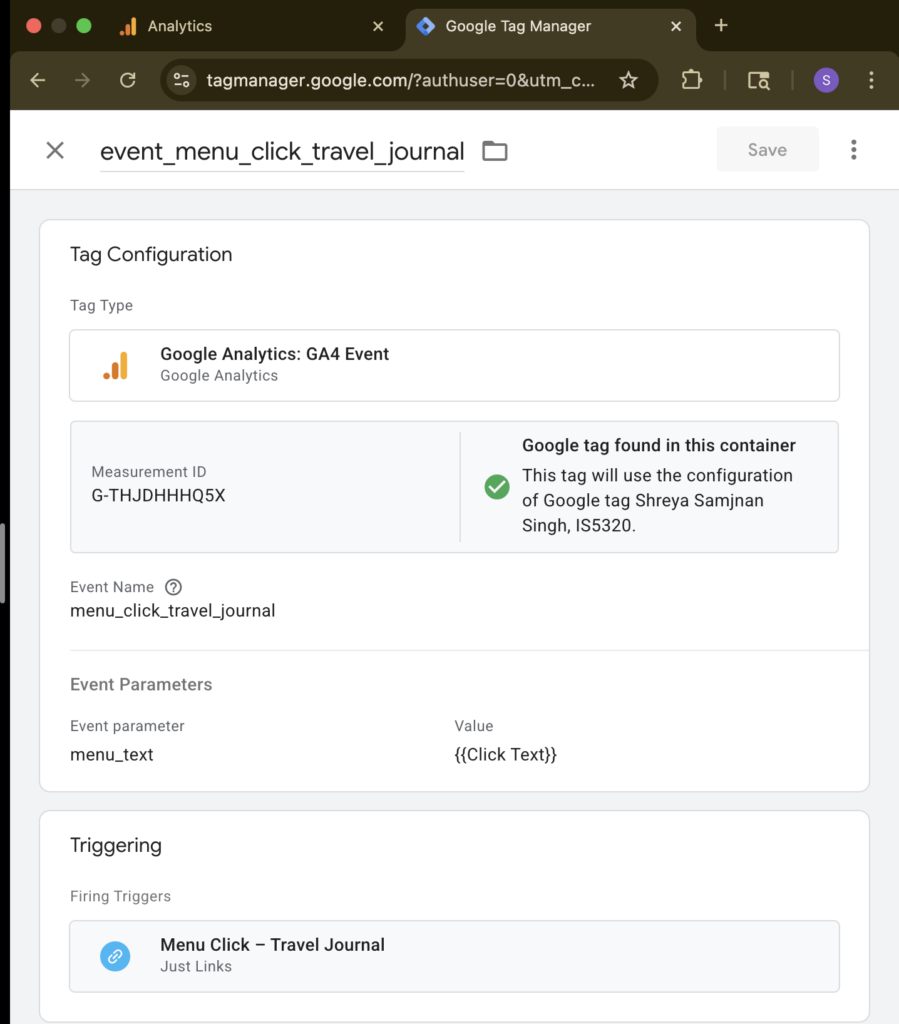
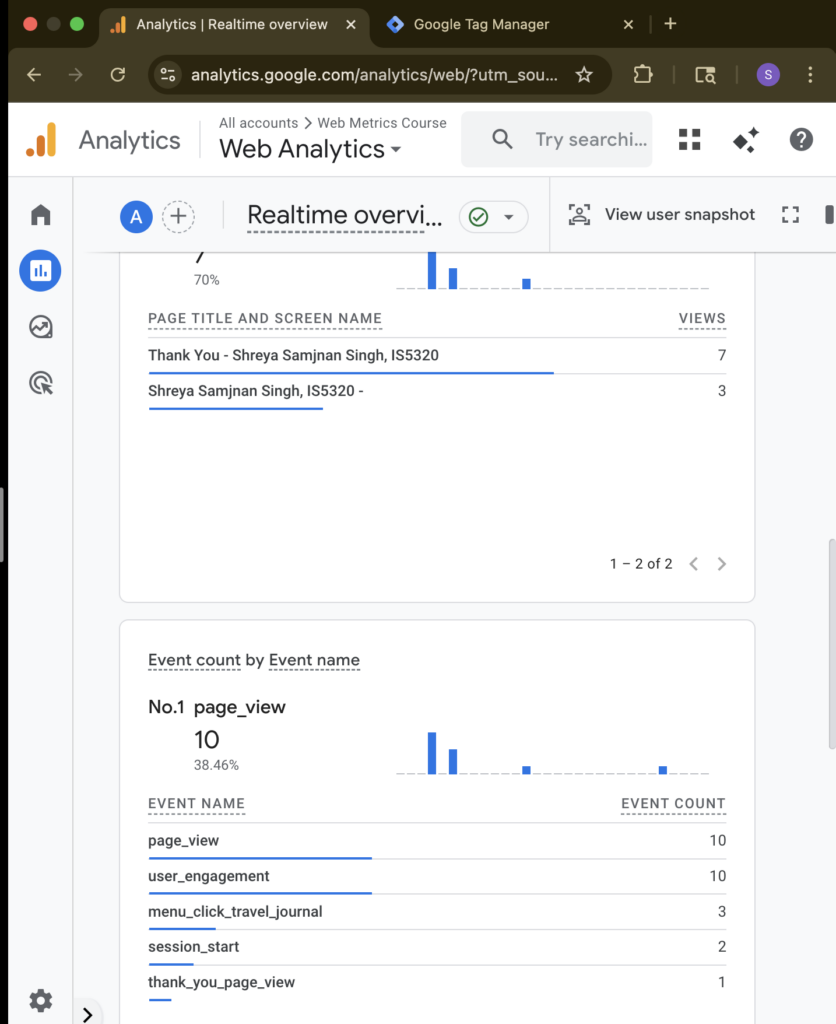
This week I focused on adding more travel content and organizing my menu so visitors can explore my trips easily. I created two new posts, Portland and New Orleans, each with free‑to‑use images and attribution. I added both posts under my Travel Journal section for general audiences and again under HWs → Homework8 for grading. I also reviewed categories and tags on all posts, making sure travel posts share the Travel category and city‑specific tags, while homework posts keep their IS 5320 Homework categories. Finally, I created a new Thank you page and created 2 new event conversions (thank_you_page_view & menu_click_travel_journal). See screenshow below for events triggered.
Essay II. Summary of your “Thank you” event conversion (add screenshots) (one paragraph)
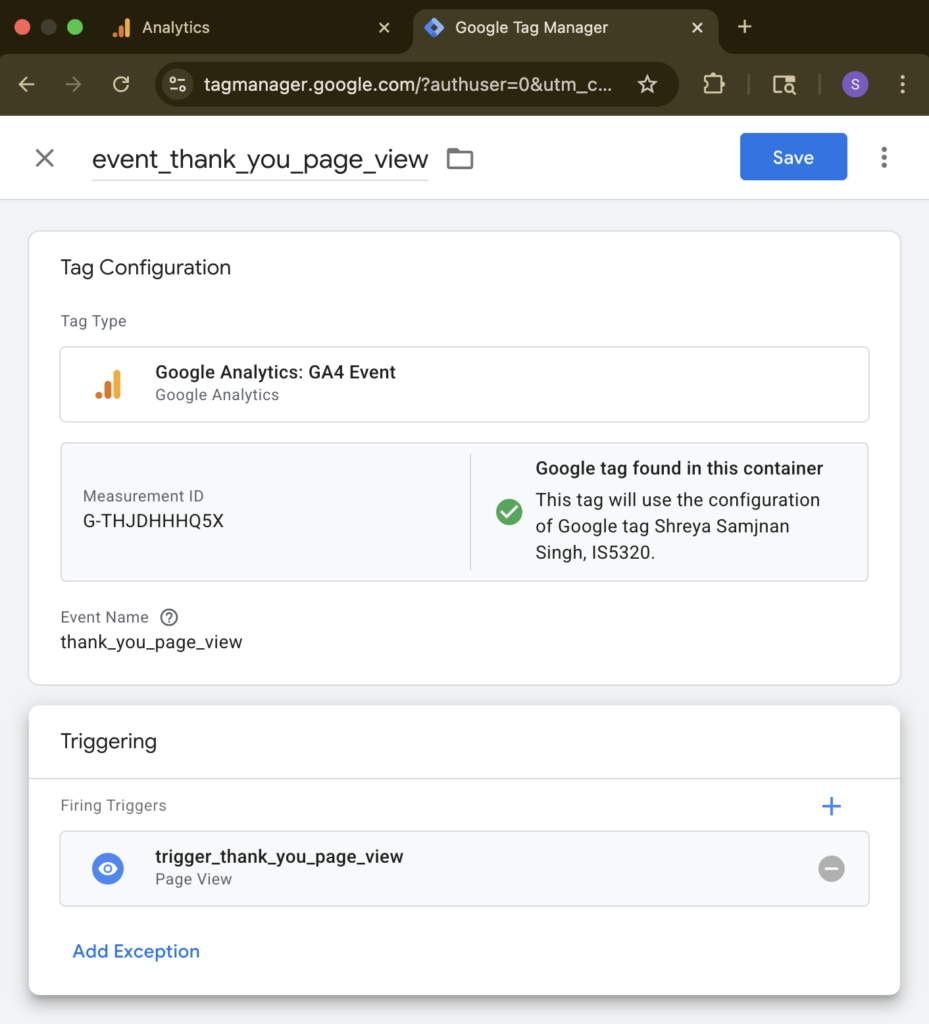
To track my new Thank you page as a conversion, I first created the page and added a simple message that I can redirect to after important actions on the site. In Google Tag Manager, I set up a GA4 Event tag with my Measurement ID and used an event name thank_you_page_view. I then created a Page View trigger that fires when the Page URL contains the unique path for my thank‑you page and attached that trigger to the event tag. After publishing the GTM container, I visited the thank‑you page and confirmed in GA4 that the thank_you_page_view event appeared in the Events list. In GA4 Admin, I went to Data display → Events and toggled this event to Mark as conversion, so visits to the thank‑you page are now counted as a key conversion action in my reports.
Essay III. Summary of your “menu click” event conversion (add screenshots) (one paragraph)
I implemented a menu click event to see when visitors interact with my main navigation. Using Google Tag Manager, I enabled click variables, then created a Link Click trigger that fires when the Click Text contains the label of one of my main menu items (Travel Journal). Next, I created a GA4 Event tag with my Measurement ID and an event name menu_click_travel_journal, and passed an extra parameter with the menu item text so I can see which link was clicked. I attached the Link Click trigger to this tag, tested it in Preview mode by clicking the menu item on my site, and published the container once I saw the event firing correctly. After waiting for GA4 to process the data, I marked the menu_click_travel_journal event as a key event in GA4 Admin so that menu interactions now show up in my reports as another conversion‑style signal of user interest.